3D Exercise 118
- Breno Cruz

- Feb 21
- 2 min read

In this CAD tutorial we'll use the features:
Here is a breakdown of the core mechanics and advanced controls found within the Extrude property manager:
1. End Conditions (Extent Types)
The power of a robust parametric model relies on how you tell the extrude to terminate, rather than just typing in a static dimension.
Blind (Distance): The most basic extrude. You define a specific numerical value (e.g., 50mm), and the geometry extrudes exactly that far.
Through All: The extrude pushes completely through all existing geometry in its path. This is standard practice for creating clearance holes, ensuring the hole updates even if the part thickness changes later.
Up to Next / Up to Surface: The extrusion stops exactly when it hits the next body or a specifically selected face. This is incredibly useful for mating parts in complex assemblies or conforming to curved, organic shapes.
2. Boolean Operations (Operation Types)
Every time you extrude, you must tell the software how the new geometry should interact with the existing bodies. (Note: SolidWorks usually handles this via separate "Boss" and "Cut" features, whereas Fusion 360 handles it via a dropdown within a single Extrude command).
Join / Add: Merges the new extrusion with an intersecting solid body to create a single, continuous piece.
Cut / Remove: Uses the extruded profile as a cutting tool to subtract material from intersecting bodies.
Intersect: Removes all material except the overlapping volume where the new extrusion and the existing body meet.
New Body / New Component: Creates a completely independent 3D volume that does not merge with adjacent parts, which is essential for multi-body part design and creating moving mechanisms.
3. Draft (Taper Angle)
Instead of adding a separate draft feature later in the design tree, you can apply a draft angle directly within the extrude command.
Function: It tapers the sides of the extrusion inward or outward by a specified degree.
Application: This is a mandatory step for designing cast parts or plastic injection molded housings, ensuring the part can be cleanly ejected from the mold.
4. Thin Feature (Thin Extrude)
This turns a standard extrusion into a shell-like wall.
Function: Instead of filling the inside of a closed sketch profile, the software extrudes a wall of a specific thickness along the sketch line. You can even use this on open sketch lines (like a single arc) to create rib-like structures or curved walls instantly.
All dimensions are in mm/g/s/ISO
3D Sketch
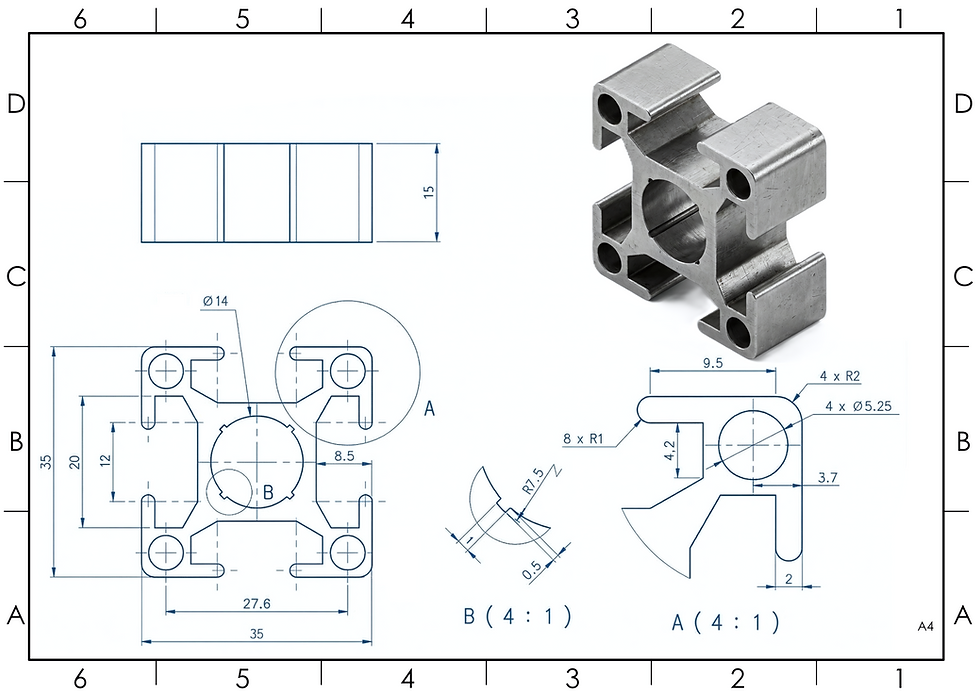
Exercise 118 - 3D practice drawing for all CAD software ( AutoCAD, SolidWorks, 3DS Max, Autodesk Inventor, Fusion 360, CATIA, Creo Parametric, SolidEdge etc.)
Tip: Subscribe to the channel for more tutorials like this.
Tutorial In Autodesk Fusion: https://youtu.be/vvNBT7WAgSo


Comments